
FAQ
Sales Management
/Transactions
/Sale Invoice (Scan POS)
Touch Interface to select products in Scan POS.
Scenario:
Most of the products in a grocery shop already have bar code. But some of the items don't have barcode. It is not possible to barcode those products like milk packet, bread and bakery products etc. Most of the retailers prefer touch screen over keyboard due to space constraint. Thus the touch interface solves this problem by giving an easy way to find and select products in Scan POS.
Step 1: Create a menu:
- From main go to the Menu Management (M>F>M)
Step 2: Sales Option setting:
- From main go to the Sale Invoice (Scan POS) (S>T>S)
- Press Alt+O or click on “-O Opt Voucher”
- Now go to the “Menu” field and press enter
- Set menu and press Ok, then press Alt+S to save the option.
.
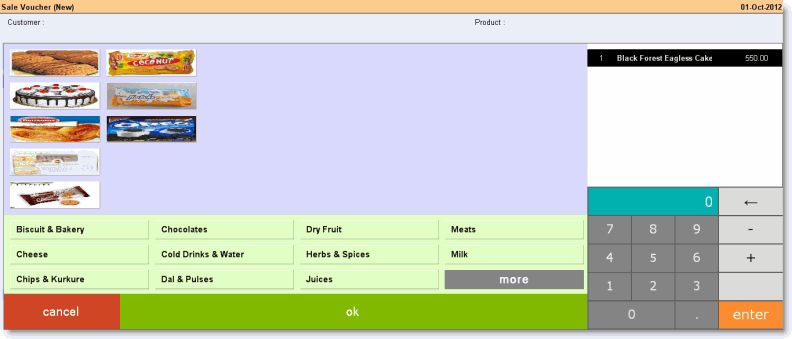
Step3: Touch mode transaction from Sale Invoice (Scan POS):
- From main go to the Sale Invoice (Scan POS) (S>T>S)
- Press Ctrl+F3 or click on "^F3 Touch Mode"
Note:
- Touch mode in Scan POS is used only for order taking purpose. No modification can be done here whatsoever.
- It will take products and its details from Menu Management (M>F>M).
- It will work as per FIFO method, irrespective of FIFO is selected as Yes/No in Product Management.
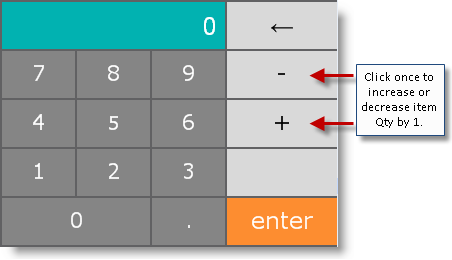
- Ask Qty and Ask Price will work in this mode as per Product Management (M>I>P).
- Stock checking is available in this mode.
- Security control also has been added for this feature in Designation Setup > Change Action Control > "Open Touch Mode from Scan (POS)"