
Affix Food Tags with different Food Products of similar packaging to know the contents.
Scenario:
In the kitchen, food is packed in the similar packaging. It is quite difficult for both the customer and delivery staff to know the food by looking at it.
Solution:
This problem can be solved if a FOOD TAG can be placed on the Food Packed. We advise using the same KOT printer to print the FOOD TAG and affix it using a 2 sided rounded tape. Please follow the steps given below to get Food Tag along with KOT.
Step 1: Check the Print Tag in the Menu Management:
- From main go to the Menu Management (M > F > M)
- Select an existing menu from the list or Display screen
- In the Product selection row, go to the Print Tag column
- Select No / On Item/On Quantity by pressing ALT + L
- Press ALT + S to save the changes.
- No = It will not print the FOOD TAG
- On Qty = It will print FOOD TAG based on quantity (It will round up the decimal quantity)
- On Item = It will print single FOOD TAG based on Item
Step 2: Do the following changes in the Sales Option:
- From main go to the Sale Invoice (Scan POS) (S > T > S)
- Press ALT+O to open Sales Option
- In the Touch POS section set Print Food Tag=Yes.
- Press ALT+S to save the changes.
Step 3: Do the following changes in the Sale POS Print Option:
- From main go to the Sale Invoice (Scan POS) (S > T > S)
- Press ALT+R to open POS Print Option
- Do the necessary changes as discussed below and then press ALT + S to save those.
|
Columns |
Particulars |
|
Print POS Remarks |
Set Yes to print a POS Remark in the Food Tag; else set No. |
|
Print Modifier |
|
|
Print Forced Questions |
|
|
Print User |
Set Yes to print the User name; else set No. |
|
Print Date and Time |
Set Yes to print the Order Date and Time; else set No. |
|
Food Tag Heading |
Enter the heading text for Food Tag. |
|
Print Memo ID |
Set Yes to print the Order Memo ID; else set No. |
|
Decimal In Qty |
Set the digits after decimal to be printed in the quantity. |
|
Print Unit |
Set Yes to print the Unit name; else set No. |
|
Print Item Code |
|
Note:
- Food Tag will be printed only if Order Delivery Type is set to Home Delivery/Pickup in the Customer Detail screen.
- Food Tag will be printed along with KOT.
- Food Tag will not be printed on Local Printer even if Print Local KOT is set to Yes in the Sales Option.
- Food Tag will not be printed in Table Mode or Quick Mode transactions.
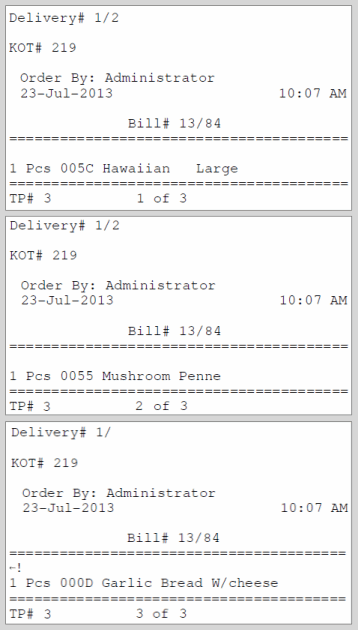
Sample Print Out of Food Tag:
.