
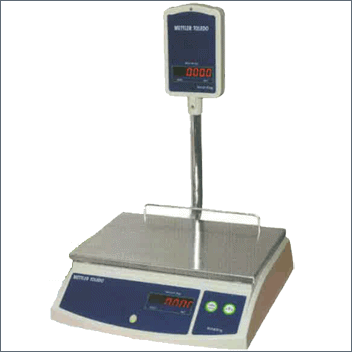
Implementation of METLER TOLEDO Retail King weigh scale model RK-SQ-P-20
This is a plug and play device, any type of driver or hardware program does not require implementing the METLER TOLEDO Retail King weigh scale. You just need to connect weigh scale device with computer and follow the steps as given below;
Step 1: Edit C:\RanceLab Software\FR6.CreditCard.xml file:
- Open C:\RanceLab Software \FR6.CreditCard.xml by right clicking and open in Notepad
- Go to the WeighingScale portion of the file
- And then type the following changes as shown in the picture below; please skip this if the changes already exist.
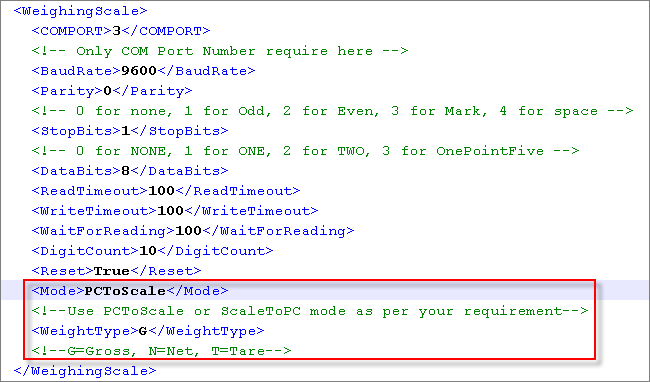
Step 2: Do the following changes:
- Set “POS: Ask Quantity=Scale” in the Product Management if you are using Sale Invoice (Scan POS) for sale transactions.
- Set “Ask Qty=Scale” in the Menu Management if you are using Sale Invoice (Touch POS) for sale transactions.

Note:
- METLER TOLEDO Retail King weigh scale will support measurement in Kilogram only.
- This feature is available in Sale Invoice(Scan POS), Sale Invoice(Touch POS) and Container at Sale.
Sample Picture of Weigh Scale buttons;
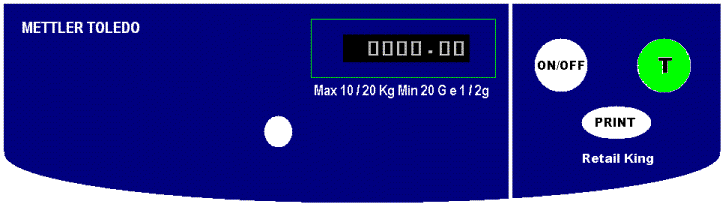
Note:
- Use T button of the weigh scale to make measurement ZERO.
- Use ON/OFF button to ON or OFF the weigh scale.
- Use PRINT button to populate weight of the product.
If you are running a sweet shop and want to sale items as per its weight;
Steps:
- From main go to the Sale Invoice(Scan POS) or Sale Invoice(Touch POS)
- Select the item from the list or menu
- Enter Quantity screen will be appeared
- Now put the product on the weigh scale and press “PRINT” button of the weigh scale
- It will populate weight(Kg) and amount as per weight automatically.
If you are selling packed foods on weigh basis after deducting the weight of the packing materials;
Step 1: Create Container Master
For more detail about container please visit;
How to use Container Management System in RanceLab Software?
Step 2: Set POS: Ask Container=Yes in the Product Management.
Step 3: Sale Entry:
- From main go to the Sale Invoice(Scan POS)
- Select the item from the list
- Enter Quantity screen will be appeared
- Now put the product on the weigh scale and press “PRINT” button of the weigh scale
- It will populate weight(Kg) and amount as per weight automatically
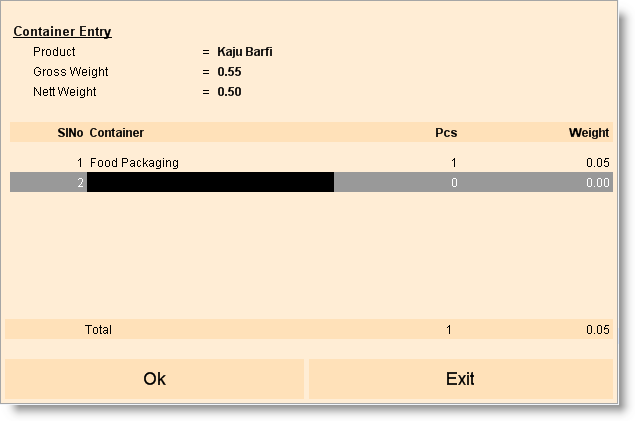
- Then it will prompt to Container Entry screen
- Again press “PRINT” button of the weigh scale
- It will populate weight(Kg) of the product in the “Gross Weight” field
- Now select the Packing Item (Container Master) at column Container
- Enter the quantity of Packing Item (Container)
- Then it will calculate Net Weight and amount as per net weight automatically, Nett Weight = Gross Weight – Weight of the Packing Item (Container).
Note:
- Container will support measurement in Kilogram only.
- This is available in Sale Invoice(Scan POS) transactions only.
Related Faqs:
- Is it possible to sell goods after weighing them in a weighing scale in Fusion Retail 6?
- How to Integrate Weighing Scale with Touch POS?
- Is it possible to manually adjust my weighing scale barcode denominations in RanceLab Software?
.