
How can I compare multi location transaction data of Branch with HO ?
Scenario:
In the multi-location format data transfer between HO and Branch happens very frequently. Since the data transfer depends upon various technical aspects like availability of internet, data server etc., chance of data mismatch cannot be denied which results in report mismatch.
Solution:
Here you can see comparison report of data travelled to and fro. You can compare any transaction like sale, purchase, transfer, stock journal, voucher entry etc. It reveals data mismatch so that you can send or receive that data once again.
- From main menu go to the Multi Location Data Status (T > S > S)
- In the Multi Location Data Status click “^S Comp Trans” button or press CTRL + S
- Select a desired transaction from the list. You may select Account / Issue to Customer / Issue to Jobber / Opening Stock / Physical Stock / Prepaid Card Transaction / Purchase / Purchase Challan / Purchase Order / Purchase Return / Rate Change / Received from Customer / Received from Jobber / Rejection In / Rejection Out / Sale / Sale Challan / Sale Order / Sale Return / Stock Journal / Stock Transfer / Stock Transfer Indent / Work Order.
- Consequently, it will show comparison report of the selected transaction, between Branch and Ho for a given date range.
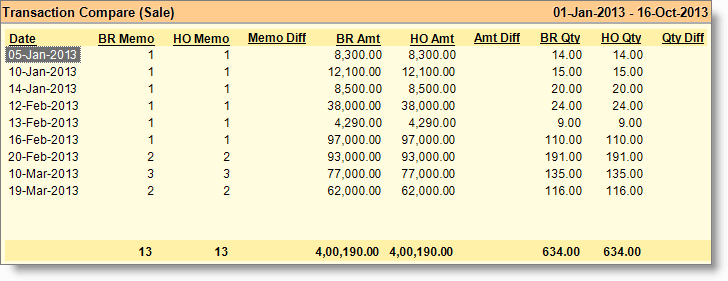
Note:
- It will work only at branch if Remote Data Service is available.
- If difference > 0 then send data of Branch to HO and if difference < 0 then send data of HO to Branch.
- You may select one or more date rows and click on "^X Export" OR "^E Export ZIP" button to send the data.
Columns in the Transaction Comparison:
|
Date |
Shows date. |
|
BR Memo |
Shows total number of bills entered in a day for the selected branch. |
|
HO Memo |
Shows total number of bills in the HO data for the branch for a day. |
|
Memo Diff |
Difference in number of bills for a day between branch and ho data for branch. |
|
BR Amt |
Shows total sale amount for a day for the selected branch. |
|
HO Amt |
Shows total sale amount for a day in the ho data for branch. |
|
Amt Diff |
Difference in sale amount for a day between branch and ho data for branch. |
|
BR Qty |
Shows total sale quantity for a day for the selected branch. |
|
HO Qty |
Shows total sale quantity in the HO data for the branch for a day. |
|
Qty Diff |
Difference in sale quantity for a day between branch and ho data for branch. |
Buttons in the Sale Comparison:
Buttons are explained in Using Reports (Register). Buttons specific to “Sale Comparison” are discussed here:
|
^X Export |
Press CTRL + X to create outbox data for the selected date. The outbox data is sent to that location automatically. Recommended for the IP and FTP users. |
|
^E Export ZIP |
Press CTRL + E to create a ZIP file for the selected date. Use this option only if you plan to send the data file manually. Recommended for the Offline users. |