
FAQ
Warehouse Management
/Reports
/Stock Statement
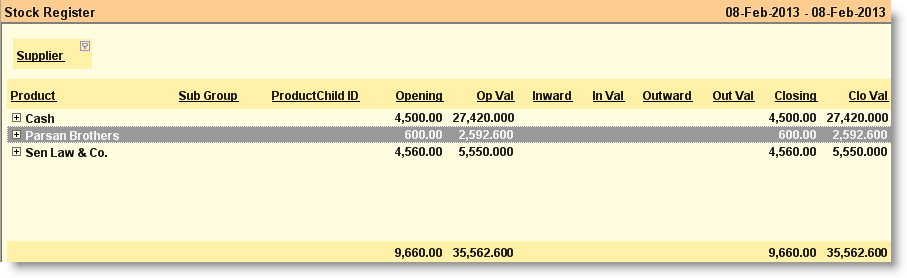
How to view Supplier wise report in stock register?
Answer:
- Go to Main Menu > Warehouse Management > Reports > Stock Statement (W> R> S)
- Press Ctrl+ D to open report in the Product detail mode
- Right click on report header
- Choose the Show Group By Box in the menu
- Right click on report header
- Choose the Column Chooser in the menu
- Select the "Supplier" column from the list, drag and drop it at the Group By Box as shown in the picture below;
For more details please visit: