Create the General Ledger Accounts related to PoS system (Sales & Purchase and related payments transactions) and Customer Ledgers.
In case of impersonal accounts of Balance Sheet and all ledger accounts of Revenue Accounts (Income & Expenses), you do not need to enter Address and other particulars.
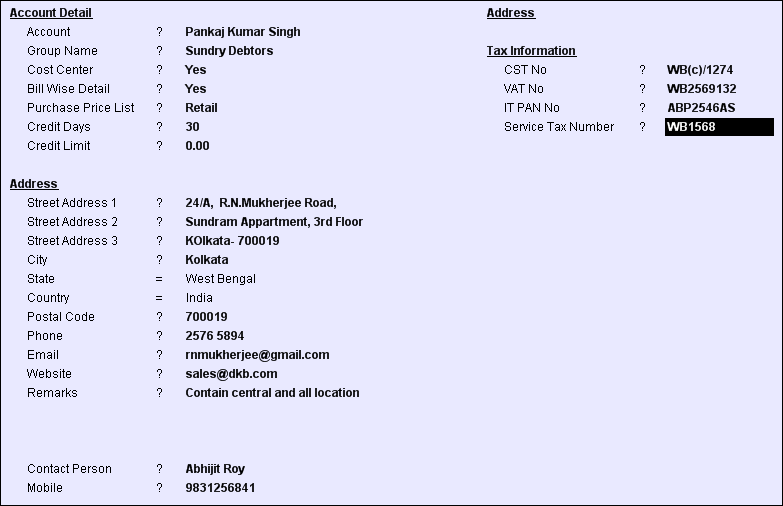
Fields in the Account Ledger are as follows:
Account Details
|
Account
|
Enter the name of the ledger account
|
Group Name
|
Select the Account Group from the list. If the Account group does not exist, then press Alt+N and enter a new group (as explained below).
|
Cost Center
|
Set Yes to enable entry of Cost Center wise details (normally Nominal Ledger Accounts related to P & L A/c), When such ledger account is transacted in a voucher, the user will be asked to specify the related cost center also.
Set No if Cost center break up for the ledger is not required
|
Bill Wise Detail
|
Set Yes (for Customer / Supplier / Advance Accounts) to specify the bill number also during voucher entry. When such ledger account is transacted in a voucher, the user will be asked to specify the related Bill Ref details also.
Set No if Bill wise details are not required for the ledger account.
|
Default Price List
|
Select the Price list from the Price List. Press CTRL + N to create a new Price List. During Sales voucher entry, the Item rate will be carried as default from the selected Price List).
|
Use in Payroll
|
Set Yes else it will not appear in the ledger selection list in Pay Head Master.
|
Credit Days
|
Enter the Credit Days allowed to the customer or by the supplier in number of days.(only in case of Sundry Debtors / Creditors) The default due date of the Bill will be computed from the Credit Days specified. For example if the Voucher Date is 1st Jan and credit Days is 15, then the default due date will be 16th Jan.
This value is carried in Sale / Purchase/ DN / CN entry but may be changed there during voucher entry.
|
Credit Limit
|
Maximum Credit Limit allowed (in the base currency), only in case of Sundry Debtors / Creditors New credit sales bill of the customer will not be allowed to be entered if the balance exceeds credit limit.
|
Interest Rate %
|
Set rate of interest to be charged after breaching payment due date.
|
Interest Rate Per
|
•30 Days Month= If interest is to be charged on 30 days. •365 Days= If interest to be charged on 365 days. •Calendar Year= If interest is to be charged yearly. |
Other Information
|
Enter any important info you like to store.
|
Team
|
Press ALT + L to select one or more Team Master(s) from the list.
|
Address:
Enter the following details (Address & other details) in case of personal ledger accounts only (like Customer, Supplier, Loan Advance etc). For other ledger accounts, leave blank at these fields.
|
Street Address 1
Street Address 2
Street Address 3
|
Enter the Building / Door Number and name of street where of the Customer / Supplier. Break up the complete address in 3 lines as you like to print in the envelope, mailing labels etc.
|
City
State
Country
|
Select the City from the list. Press CTRL + N to add a new City Name (and the corresponding State). The name of the State & Country is displayed.
|
Postal Code
|
Enter the Postal Index Code or Zip code as applicable for that country.
|
Phone
|
Enter Telephone numbers of the office.
|
Email
|
Enter Organization's email address.
Note:
Duplicate email address cannot be entered. If a duplicate address is entered then system will restrict it and show following message: “Email-ID” already exists with “Ledger Name”.
|
Website
|
Enter Organization's website address, if any
|
Contact Person
|
Name of contact person at the organization.
|
Mobile
|
Mobile number of the contact person.
Note:
Duplicate mobile number cannot be entered. If a duplicate number is entered then system will restrict it and show following message: "Mobile Number” already exists with “Ledger Name”.
|
Tax Information
|
CST No.
|
Enter the Central Sales Tax number & Registration date of the party.
|
VAT No.
|
Enter the Value Added Tax number & Registration date of the party.
|
IT PAN No.
|
Enter the Income Tax Permanent Account number of the party.
|
Service Tax No.
|
Enter the Service Tax number of the party, if any
|
Vat Class Name
|
Press ALT + L to select a Vat Class. If Vat Class does not exist then Press CTRL + N to create new. By creating VAT CLASS, you are classifying different VAT Rates and by selecting VAT CLASS with ledger, you assign a particular vat class for your vendor or customer. Though it does not have any impact on transactions, it is selected just for reporting purposes.
|
|
Buttons in the Account Ledger are as follows:
-D Display
|
Click at "-D Display" button bar or press ALT + D for display all Ledger entries
|
-L List
|
Click at "-L List" button bar or press ALT + L to get the list of any item.
|
-S Save
|
Click at "–S Save" button or press ALT + S to save the entries
|
Exit
|
Click Exit button or press Esc button to come out of the current screen
|
F1 Help
|
Press F1 to get context sensitive help relating the current voucher.
|
|
Tally import data from Fusion should carry Registration Type with account ledgers
Registration Type detail is required during exporting ledger master in Tally, and now it takes by default Regular for all ledgers in Tally after exporting from Fusion.
In Account Master (MAA)- added a field below Vat Class.
GST Registration Type = "[None]/Regular/Consumer/Composition/Unregistered"
And during account master Export in tally - added a tag name "<GSTREGISTRATIONTYPE>” in XML with value as defined in Gst Registration Type field in Fusion.
Require Team system in the ledger to view report
Scenario:
Need a user-wise restriction to view reports of specific ledgers, for example, say an operator can not view cash or bank ledger balances, but he can make voucher entry related to cash or bank and view vouchers entered by him for modification or deletion.
Solution:
In User Master: Added a Field
"Team Report = Single selection List of Team."
In Account Ledger Master - Added a field.
“Team (Report) = Multi-selection list of Team Master (Report)”
It will show the balances and transactions in the Ledger Report based on the Team assigned in the ledger master.


