
Meal wise Sal–Finance Report.
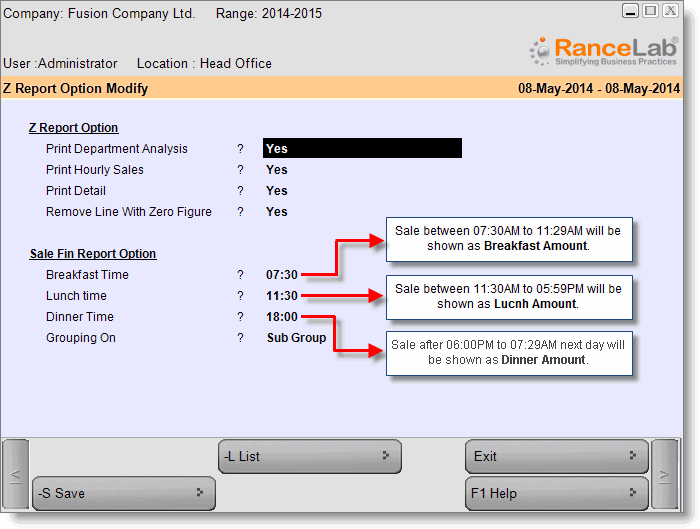
Step 1: Do the following changes:
- From main menu go to the Day End Report (S > R > D)
- Press Ctrl + O key or click “^O Option” button
- Now do the changes as shown in picture below:
Step 2: Meal wise Sale Finance report:
- From main menu go to the Day End Report (S > R > D)
- Press CTRL + S or click “^S Sale Fin” button
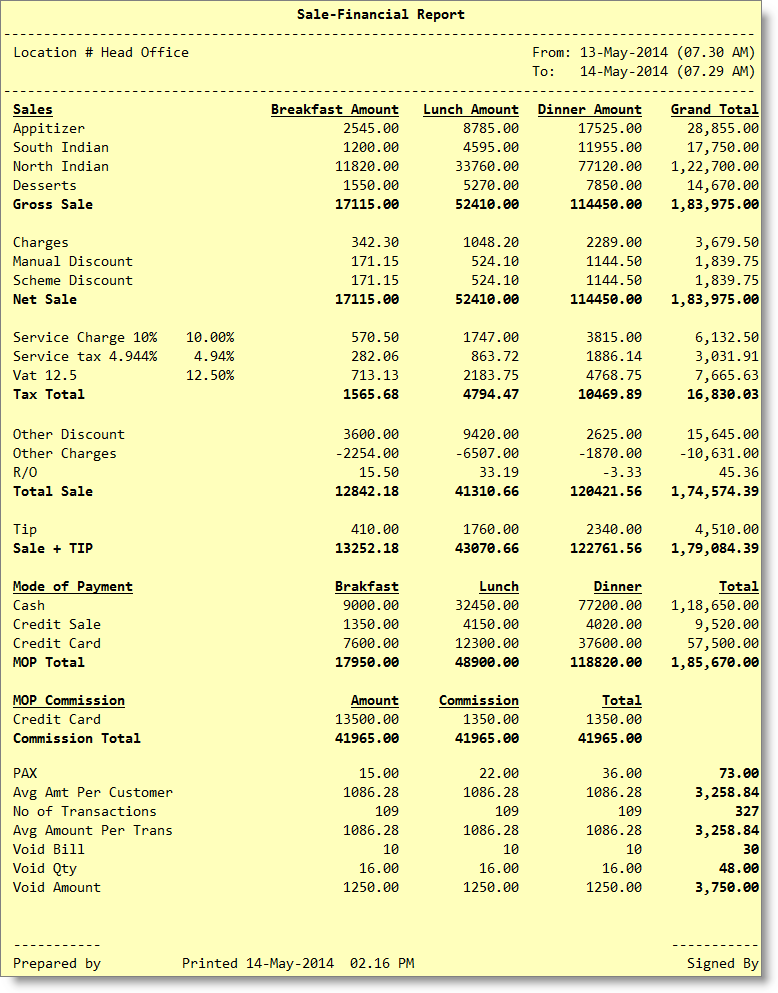
- Meal wise Sale Finance report is as follows:
|
Gross Sale |
Subtotal of Brand / Department / Group / Subgroup as selected in the Option. |
|
Charges |
Charges entered using “^O Charges” button in the Sale Invoice (Scan POS). |
|
Manual Discount |
Discount entered using “^M Item Disc” button in the Sale Invoice (Scan POS). |
|
Scheme Discount |
Discount given using Scheme, Combo, Price List, Card Type etc. |
|
Net Sale |
Gross Sale + Charges - Manual Discount - Scheme Discount. |
|
Tax Total |
Subtotal of tax ledgers. |
|
Other Discount |
Other Charges amount. |
|
Other Charges |
Other Discount amount. |
|
R/o |
Round off amount. |
|
Total Sale |
Net Sale + Tax Total - Other Discount + Other Charges + R/o. |
|
Tip |
Tip amount. |
|
Sale + Tip |
Total Sale + Tip |
|
MOP Total |
MOP wise amount total. |
|
Commission Total |
MOP Commission amount. |
|
Pax |
Total number of pax. |
|
Avg Amt Per Customer |
Total Sale / Pax. |
|
No of Transactions |
Total number of transactions. |
|
Avg Amount Per Trans |
Total Sale / No of Transactions. |
|
Void Bill |
Total number of void bills. |
|
Void Qty |
Total number of items has been void. |
|
Void Amount |
Total void amount. |
..