
Is it possible to calculate discount and charge on sale rate and calculate tax on the amount after charge added to the sale rate?
Scenario: Require tax calculation as per the following;
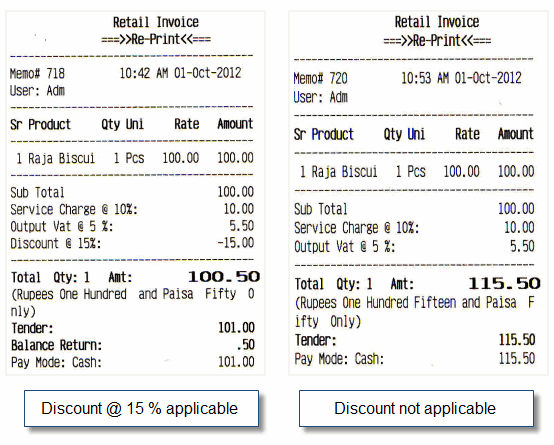
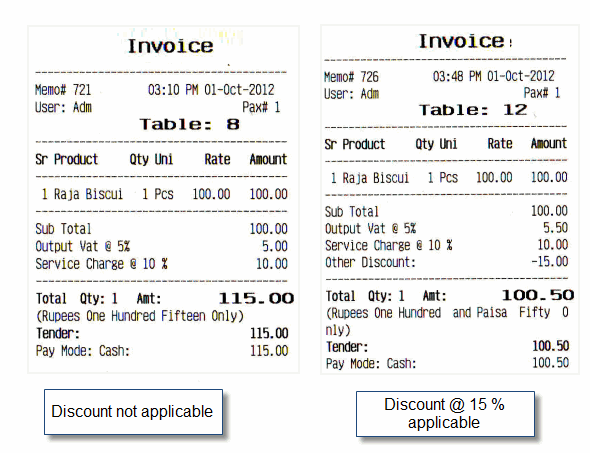
Example - 1 (discount not applicable)
Sale Rate= Rs. 100/-
Service charge @10% on Sale Rate= Rs. 10/-
Output VAT@5% on Sale Rate+Service Charge= Rs. 5.50.
Total Bill Amount = Rs.115.50/-
Example - 2 (discount @ 15% applicable)
Sale Rate= Rs. 100/-
Service charge @10% on Sale Rate= Rs. 10/-
Discount @ 15% on Sale Rate= Rs.15/-
Output VAT@5% on Sale Rate+Service Charge= Rs. 5.50.
Total Bill Amount = Rs.100.50/-
In order to get solution on above scenario, please follow the steps as given below;
For Scan POS:
Step 1: Create a new charge master named “Service Charges @10%”:
- Go to the "Charges Master" (M> A> D).
- Type Service Charge @10% in “Charges Name” field.
- Select "Add" in “Type” field.
- Select "On Product Value" in “Method” field.
- Set rate 10% in “Rate” field.
- Set "Ledger" and other details then save by pressing 'Alt + S'.
.
Step 2: Create a new charge master named ‘Output Vat @5%’:
- Go to the "Charges Master" (M> A> D).
- Type Output Vat @5% in “Charges Name” field.
- Select "Add" in “Type” field.
- Select "On Current Subtotal" in “Method” field.
- Set rate 5% in “Rate” field.
- Set "Ledger" and other details then save by pressing 'Alt + S'.
.
Step 3: Create a new charge master named ‘Discount’:
- Go to the "Charges Master" (M> A> D).
- Type Discount in “Charges Name” field.
- Select "Less" in “Type” field.
- Select "On Product Value" in “Method” field.
- Set "Rate", "Ledger" and other details then save by pressing 'Alt + S'.
.
Step 4: Set all the aforesaid charges and discount in sale option.
For more detail please check the link given below;
it possible to set separate accounting entry for discount and charges?
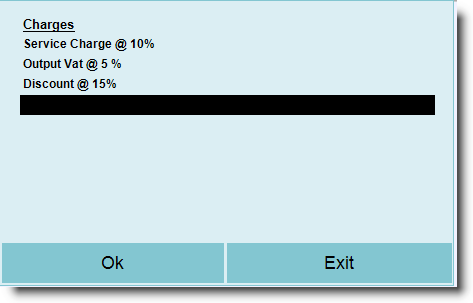
Note: Set all the aforesaid charges in the order Service Charge @ 10%, Output Vat @ 5 %, Discount @ 15 % in the sale option as shown in the picture below.
.
.Sample Print Out:
For Restaurant POS:
Step 1: Change method of calculation of ‘Other Discount’
- Go to the "Charges Master" (M> A> D).
- Press 'Alt + D' (Display).
- Go to "Other Discount" row.
- Under the Head "Method", press 'Alt + L'.
- Choose "Quantity*Rate" and press "Ok".
- Now press 'Alt + S' on Display Screen to save.
- Click "Yes" when it ask for "Confirm Entry".
.
For more detail please check the link is given below;
How do I modify Other Charge and Other Discount Master?
.
Step 2: Create a new tax master;
- Go to the "Tax Master" (M> A> T).
- Type Tax at Sale in “Name” field.
- Set "No" if tax is to be charged separately else set "Yes" in “Include in Rate” field.
- In “Account” field press 'Ctrl + N' to create a new ledger.
- Type Service Charge @10% in “Account” field of ledger creation screen.
- Select "Group Name" like Direct Income, Direct Expenses etc.
- Press 'Alt + S' and then click on 'Ok'.
- Now press 'Esc' or click on "Exit" to come back on "Tax Master" screen.
- Select “Service Charge @10%” in Sl No.1 of “Account” field and set rate 10%.
- Then press 'Ctrl + N' again at 2nd Sl No of “Account” field to create another ledger.
- Type Output Vat @5% in “Account” field.
- Select "Group Name" like “Duties & Taxes”.
- Press 'Alt + S' and then click on "Ok".
- Press 'Esc' or click on "Exit" to come back on "Tax Master" screen.
- Select “Output Vat @5%” in Sl No.2 of “Account” field and set rate 5.5%.
- Press 'Alt + S' and then click on "Ok".
.
Step 3: Now set aforesaid tax master with respective items in "Menu Management" (M> F> M).
Sample Print Out:
Note: Please don’t use any other tax at sale in "Product Master" (M> I> P).