
FAQ
Sales Management
/Transactions
/Sale Invoice (Touch POS)
It should not print void items of Touch POS transaction in windows print
Example:
- From main go to the Sale Invoice (Touch POS) (S>T>T)
- Open a table and select some items then leave from the table
- Open that table again and void few items then finish the transaction
- Now it will print zero rated void items also if use A4 size print format.
In order to stop printing of void items please follow the steps as given below;
.
- From main go to the Sale Invoice (Touch POS) (S>T>T)
- Press “D” or click on “D Display”
- Press “C” or click on “C Disp Close”
- Select any transaction row
- Press “P” or click on “P Print Bill” to get the print preview
- In the top header row click on “Change” icon as shown in the picture below;

.
- Now you will get Preview Designer screen
- In this screen click on “Detail” field as shown in the picture below;

.
- Then click on the “Scripts” field
- In scripts screen select Detail Detail and Before Print as shown in the picture below;
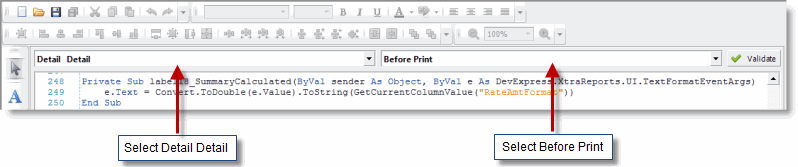
.
- In Scripts type the followings between the line "Private Sub Detail_BeforePrint(ByVal sender As Object, ByVal e As System.Drawing.Printing.PrintEventArgs)" and "End Sub" as shown in the picture below;
.
If GetCurrentColumnValue("CancellationReasonID") > 1 Then
e.Cancel = True
End If
.
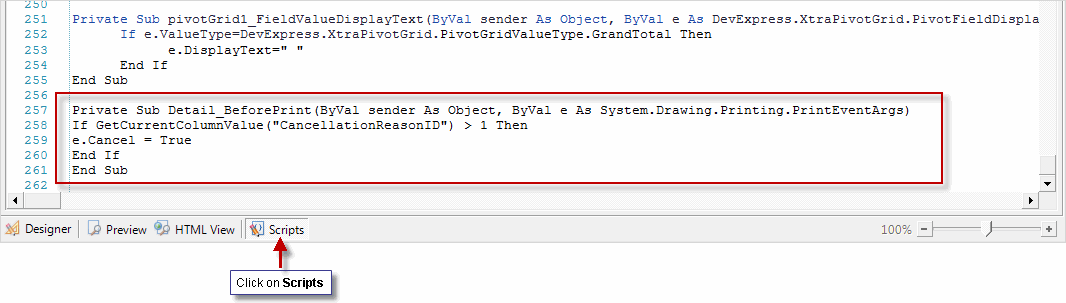
.
- Click on “Save” icon to save the changes as shown in the picture below;

.
.
Note:
- Before use above functionality you must erase all of the fields related to the item serial number else it will print unorganised serial number.
- These changes will effect only on the format file selected in Window Print Option of Sale Invoice.
- If you want to change in any other format file then please set that file in Window Print Option first then follow the aforesaid steps.
.
For more detail please visit;